Showing posts with label performance. Show all posts

Tuesday, May 10, 2016

WordPress Stack with PHP7

WordPress announced a few months ago that it is fully compatible with the latest version of the PHP framework, PHP7. Nowadays most of the popular plugins are already compatible and WordPress has also published a developer guide about how to update WordPress plugins to support PHP7.

Here, at Bitnami, we baked a new WordPress stack based on PHP7 to help you run the latest, shiniest and fastest software. WordPress + PHP7 is faster than ever before.

But that's not all. If you still want to run WordPress on PHP 5.6, now you can. Use the Bitnami LAMP Stack and install the WordPress module on it, or use the WordPress Legacy Stack. The WordPress Legacy Stack will have the same and latest version of WordPress but will ship with PHP 5.6

Both new WordPress versions are available as installers, virtual machines, and cloud images on the Bitnami WordPress Stack page.

If you have questions about Bitnami WordPress or the advantages of using PHP7 over PHP5.6, please post to our community forum, and we will be happy to help you.

Monday, June 16, 2014

Performance enhacements for Apache and PHP

In addition to updating and expanding the Bitnami Library, we are continuously looking for ways to improve our existing Bitnami stacks. In this latest round of updates, we focused on improving the performance of our Bitnami Stacks in limited resource systems such as Amazon EC2 micro instances, which have 1 virtual CPU and 613 MB of RAM, and Microsoft Azure extra-small virtual machines, that ship 1 CPU core and 768 MB of RAM.

We have now configured our Virtual Machines and Cloud Images to use the Apache Event MPM and PHP-FPM, resulting in reduced memory usage and an increase in the number of simultaneous requests that they can handle.


What is the Apache event MPM?

Apache supports three different Multi-Processing Modules (MPMs) that are responsible for binding to network ports on the machine, accepting requests and dispatching children to handle the requests.

- Prefork: Each child process handles one connection at a time. This is the default mode for Apache.
- Worker: Uses multiple child processes with many threads each.
- Event: This mode was designed to allow more requests to be served simultaneously by passing off some processing work to supporting threads and freeing up the main thread.


What is PHP-FPM?

PHP-FPM (FastCGI Process Manager) is an alternative PHP FastCGI implementation with some additional features useful for heavy-loaded sites. It has been bundled with PHP since version 5.3.3. PHP-FPM has the ability to start workers with different environments and to manage these processes.


Why are event MPM and PHP-FPM recommended for production?

The default configuration for Apache and PHP in Linux systems is to use the prefork MPM with an embedded PHP interpreter. This is a very robust configuration but it means that Apache needs to spawn a separate process for every simultaneous request it wants to serve. Because every child process loads a PHP interpreter and associated libraries, this configuration takes a significant amount of memory. In addition to this, a whole process is tied up when waiting for requests when browsers open a persistent connection to the server (which is particularly common with AJAX-heavy web applications.)

On high traffic websites, an alternate MPM (the event MPM) is preferable because it has the ability to serve a large amount of requests while maintaining low memory usage. It does so by using threads to serve requests. It retains some of the stability of a process-based server by keeping multiple processes available, each with many threads so a thread potentially misbehaving would only affect all the other threads in the same process.

Additionally, the event MPM uses a dedicated thread to deal with the kept-alive connections, and hands requests down to child threads only when a request has actually been made. That allows those threads to free back up immediately after the request is completed.

Because PHP is not thread-safe on Unix environments (in particular many of its most popular extensions), it is not possible to embed an interpreter in each event MPM process. It needs to live as a separate PHP-FPM process. Apache will serve all static resources (images, CSS, etc.) directly while PHP-FPM serves the PHP-related requests.

In the examples below, we provide some benchmarks. We used two different Amazon EC2 instances (micro and small) to run our tests. Both instances had the same WordPress installation and the same memory settings. We used the Siege tool, an HTTP load testing and benchmarking utility. We also used the webpagetest.org tool, which allows you to run speed tests from multiple locations using real browsers.

The test below uses the Siege tool to do a request to the WordPress web page and all the static files. We used 30 concurrent users for 1 minute and we got the following results:


Small EC2 instance with MPM prefork and "mod_php"
Used memory (Apache):        525MB
Transactions:        1606 hits
Availability:       89.92 %
Elapsed time:       59.08 secs
Data transferred:       12.49 MB
Response time:        0.89 secs
Transaction rate:       27.18 trans/sec
Throughput:        0.21 MB/sec
Concurrency:       24.28
Successful transactions:        1411
Failed transactions:         180
Longest transaction:        5.89
Shortest transaction:        0.11
Small EC2 instance with event MPM and PHP-FPM
Used memory (Apache+PHP-FPM):  278MB (max)
Transactions:        2480 hits
Availability:       91.75 %
Elapsed time:       59.10 secs
Data transferred:       21.30 MB
Response time:        0.69 secs
Transaction rate:       41.96 trans/sec
Throughput:        0.36 MB/sec
Concurrency:       29.11
Successful transactions:        2480
Failed transactions:         223
Longest transaction:        6.17
Shortest transaction:        0.11


The main differences when using PHP-FPM with the event MPM are the following:

- The used memory is much lower.
- The amount of data transferred is much higher.
- The transaction rate is higher and there are less failed transactions.

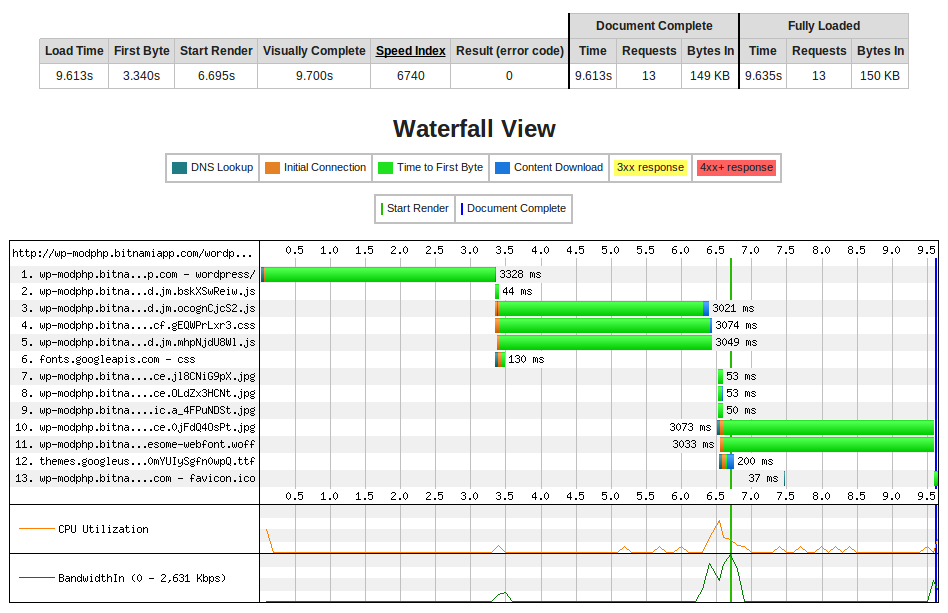
The next test shows the connection and page serving times for running 9 concurrent users using EC2 micro instances with the same WordPress sample site.

1. Apache MPM prefork with "mod_php"


2. Apache event MPM with PHP-FPM


The main differences are the following:

- The load time is much lower in the second case. Note that the load time in the first case could be very different for different tests depending on the number of free child processes.
- The "time to first byte" for the requests is much lower in the second case.


In conclusion, the Apache event MPM increases the performance of Apache, allowing it to serve more requests with less memory. If you want to deploy a PHP application you should use PHP-FPM to handle PHP requests. This is highly recommend for running applications in servers with limited memory, such as like cloud instances with 512MB or 1Gb RAM. You can find more info about these tests on our Wiki and feel free to ask any questions in our community forum.

Want to try deploying a Bitnami application in the cloud? Select your favorite application at https://bitnami.com/stacks and launch it in minutes with just a few mouse clicks.

Wednesday, November 27, 2013

Are you ready for Black Friday?

For most of us, we think of the day after Thanksgiving as the beginning of the holiday shopping season. For the administrators, maintainers and programmers of online stores, it may be the busiest and most stressful day of the year. Is your marketing team already emailing thousands of customers regarding upcoming promotions? Are you ready for them all to show up on your site at the same time? Read on to learn how to prepare your server for large spikes in traffic, as shown below. Note that most of this article and instructions apply to servers running in Bitnami Cloud Hosting.


Resize your machine!
If you expect a significant spike in traffic and your server is not yet prepared, we strongly recommend that you re-size your machine in advance. IMPORTANT: Resizing your server will stop it so that it is unavailable for a few minutes, so make sure you do this when you typically have the least amount of traffic. Also, if resizing the disk is not necessary, you should avoid doing so, as it slows down the resize process.

If the worst-case scenario occurs and your server suddenly becomes unresponsive, it will probably be due to the larger-than-normal number of visitors on your site. The slower the server response is, the more often your users hit the Refresh button in the web browser, which makes things even worse.
You can re-size your machine to a larger instance type, but there are few things you may want to consider doing first:

- Let your users know about your performance problems. Update your Twitter/Facebook account statuses to let you them know that you are working on fixing things, and try to update it often so they are aware of the process. This may help to reduce the number of people who are constantly refreshing the site.

- Turn on your application's maintenance mode if possible. Some applications allow you to switch to a special read-only maintenance mode which informs the end-user that the page is unavailable at the moment but it is going to be back online soon. This way users will not try to refresh your page constantly. It also prevents them from running into further issues or inconsistent states for example when clicking the order button and getting a timeout.

Once you are ready, sign into the BitnNami Cloud Hosting console and go to your server manage section. Click the Resize button:


The bigger the instance you use, the better. While the cost may be higher, it will significantly improve your server's performance and, because you are running in the cloud, you can simply resize back down to a smaller server after the rush is over.

Once your server is back online, turn off the maintenance mode and wait for few minutes. All your users will want to try to access it now, which may cause performance problems again for few minutes but then the server load should return to a more normal state. This is the time when, if you use caching, all of the cached pages are regenerated. Observe your machine but do not make rapid decisions. If everything is ok, then update your Twitter/Facebook accounts.

Are Evil bots affecting your site performance?

Performance problems may also be caused by misbehaving Internet bots or some other malicious scripts trying to index or scan your site, accessing as many sub-pages as possible at the same time. Follow the steps below to see if this may be happening to your site.

First, analyze the last 10000 entries in your Apache access log. The first command will show you when the analyzed period starts and the second one will list the most active IP addresses.

$ cd /opt/bitnami/apache2/logs/
$ tail -n 10000 access_log | head -n 1
$ tail -n 10000 access_log | awk '{print $1}'| sort| uniq -c| sort -nr| head -n 10


Based on the results, you can check the IP addresses with the highest number of requests using the “whois” command. You may reject all of the requests from the specific IP address by adding the Deny option in the Apache configuration file. In the example below, we will reject the 1.2.3.4 IP address in the WordPress config:


<Directory /opt/bitnami/apps/wordpress/htdocs>
deny from 1.2.3.4


Before restarting Apache, check if your changes are okay by executing the following command:

apachectl -t

Then restart the Apache web server:

sudo /opt/bitnami/ctlscript.sh restart apache

Improving the performance of your site
Improving the performance of your site is not an easy task. There is not a "one size fits all" solution to any problem and good configuration requires lots of research, testing and depends on many different factors: application technology, installed application plugins/extensions, type of the application etc.

There are few things that you may start with:
  • Cache your pages and limit the number of requests to your database.
  • Minify your Javascript and CSS and minimize the number requests to your web server.
  • Use Varnish.
  • Use CDN.

We describe all these aspects in our wiki.


Tuesday, May 7, 2013

Faster, Leaner BitNami Stacks

Tens of thousands of people come to BitNami daily to download and launch their favorite applications and development environments. Our stacks include all the software required to work out of the box. This is convenient, but also means that stacks are bigger (our servers routinely deliver Terabytes of data) and take longer to install.  We are continuously investigating how to optimize and improve our stacks. We recently released Ruby-based stacks with important performance enhancements and today we want to announce that we have significantly improved the size and installation time of all of the BitNami stacks:

- Download size has been reduced up to 25%
- Installation time has been reduced up to 20%

The table below provides some examples demonstrating the improvements for specific stacks:

Honey, I shrunk BitNami!

BitNami Stack Platform Old Size (Bytes) New Size (Bytes) Reduced size (%)
Discourse Linux 154093361 130738191 15%
Discourse Linux 64bit 159344381134155668 16%
Discourse OSX 201518444168480703 16%
Ruby stack Linux 151606058 114763947 24%
Ruby stack Linux 64bit 156942471 118022171 25%
Ruby stack OSX  16940577912963501223%
Ruby stack Windows 19310152113670417129%
Jenkins Linux 191424884 143244029 25%
Jenkins Linux-x86_64 187323355 140998975 25%
Jenkins OSX  192062870 144819619 25%
Jenkins Windows 211078764 145728200 31%

The table below shows the improvement in unpacking files time for different released stacks:

BitNami Stack Platform Old Time (secs) New Time (secs) Time reduction (%)
Discourse Linux 86.26 72.49 16%
Ruby stack Linux 86.17 69.62 19%
Ruby stack Windows 92.92 70.33 24%
Jenkins Linux 45.00 38.84 14%
Jenkins Windows 55.37 44.08 20%

Over the next few weeks we will update all stacks to include the speed and size improvements. Some of the stacks that already include these optimizations are Redmine, Discourse, GitLab, Ruby stack, LAMP, MAMP, WAMP among others.


Tuesday, April 30, 2013

Performance enhancements for Ruby-based stacks in BitNami

We have been steadily working on releasing new applications for our BitNami Library. We have also been investigating new configurations and optimizations to improve the performance of existing ones.

As part of this work we have just released new versions of Ruby Stack, DiscourseRedmine or GitLab with several performance improvements, detailed below:

We added the popular Falcon patches by default, which also include the Greg Price's patch for speedup. These fixes significantly reduce application startup time for Rails-based apps.

To test this improvement, we tested Discourse in an Ubuntu 64 bit small instance in Amazon EC2:

$ time -p bin/rake environment RAILS_ENV=production

Ruby 1.9.3-p392:  69.60 secs
Ruby 1.0.3-p392 + Falcon patches: 22.47 secs


We are also adding specific settings for improving per-application performance. Discourse developers have noticed slowdowns related to Garbage Collection. We configured the BitNami Discourse stack to increase the GC limit to 90 MBs.

We have released a new version of Ruby for Windows that ships similar performance patches. The Code Shop group already implemented these patches for Windows and using this new Ruby version, Redmine starts almost 30% faster for this platform.

In addition to that, we updated the Bundler gem to the latest 3.1.5 version for all the Ruby-based stacks, which is much faster than the previous versions. Now you can run "bundle update" in a few seconds.

If you have additional suggestions on how we can improve the performance of BitNami apps, please let us know!